Pixels
Finding Your Pixels
Pixels are tracking tags you can connect to pages and links to track traffic data. You can connect many third-party pixels to Hook2.us biolink pages and links.
To find pixels, navigate to “Pixels” on the left menu on your Dashboard. You may need to scroll down to find it.
Pixels Information
You will find the following page:
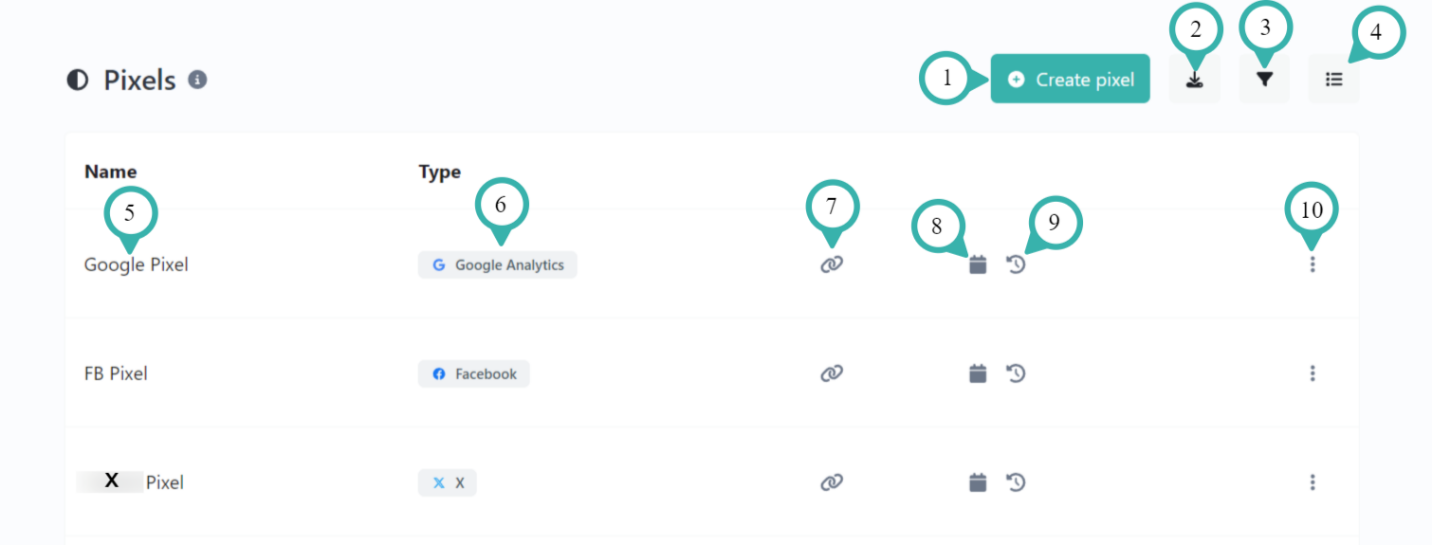
- Create pixel: Click here to create a new pixel.
- Export: Download metadata related to your pixels. File options are CSV, JSON, and PDF.
- Filters: Search or sort the list of pixels. You can also set the results per page from here.
- Bulk Actions: You can click here to select and delete multiple pixels at once.
- Name: This is the name you gave to your pixel. You can click here to edit your pixel.
- Type: This is the pixel’s type, such as Google Analytics, Facebook, LinkedIn, etc.
- Links: Loads a page showing a list of all Hook2.us links you’ve connected this pixel to.
- Created on: The date you created the pixel on Hook2.us.
- Updated on: The most recent date you updated the pixel on Hook2.us.
- Submenu: Open the submenu:
- Edit: Click here to edit your pixel.
- Delete: Permanently removes this pixel from your account. Make sure you’re certain before clicking this, as it cannot be undone.
Create or Edit a Pixel
To edit an existing pixel, click on the name of the pixel. To create a new pixel, click on “Create pixel” in the top-right corner.
You’ll see the following form to create or edit your pixel:
- Name: Enter a name to assign to this pixel. You’ll use this to identify your pixel on Hook2.us.
- Type: Select which type of pixel you’re creating.
- Pixel ID: Enter your Pixel ID. You can find this on the Pixel Provider’s platform.
- Click “Create” or “Update.” Which appears depends on if you’re creating a new pixel or editing an existing one.
Related Articles
File Links
Finding Your File Links File links allow you to give files and documents to your audience on your biolink page. To find them, first navigate to the File Links page by clicking on “File links” the left menu on your dashboard. You can also find them by ...Vcard Links
Finding Your vCard Links You can use vCards to easily share contact information. They’re used by most major contact management apps. With vCard links, you can give access to your contact info to your audience. You can find your vCard links by ...Event Links
Finding Your Event Links You can use event links to make it easier for your audience to connect to and remember events. Event links automatically add events to visitors’ calendars. To create or edit event links, navigate to “Event links” on the left ...Static Sites
Finding Your Static Sites Static Sites are small, simple websites without need of databases or server processing. If your need is simple enough, this can be a great alternative to hosting a full-featured website. You can upload it here, get a ...Shortened Links
Shortened Links Shortened links are useful for a number of reasons. Of course, you can shorten a long or cumbersome URL. You can have a link that’s more closely associated with your brand even if the original URL isn’t. You can configure some ...