Custom Domains
Finding Your Custom Domains
You do not need to rely on the internal short URLs, though they are there for your convenience. You can connect custom web domains you own to your biolink pages. To access custom domains, navigate to “Custom domains” on the left menu of your Dashboard. You may need to scroll down to find the link.
Custom Domains Information
You will see the following page:
- Connect domain: Click this to connect a new custom domain.
- Export: Download metadata related to your custom domains. File options are CSV, JSON, and PDF.
- Filters: Search or sort the list of domains. You can also set the results per page from here.
- Bulk Actions: You can click here to select and delete multiple domains at once.
- Domain: This is the domain you connected to our system.
- Status: This shows the status of the domain on Hook2.us. Possibilities are “pending” if not yet enabled or “active” if enabled.
- Links: Loads a page to view links connected with this domain.
- Created on: The date you created the domain on Hook2.us.
- Updated on: The most recent date you updated the domain on Hook2.us.
- Submenu: Open the submenu:
- Edit: Edit the details of this domain.
- Delete: Permanently removes this domain from your account. Make sure you’re certain before clicking this, as it cannot be undone.
Create or Edit a Custom Domain
To edit a custom domain, click on the domain name. To connect a new custom domain, click “Connect domain” in the top-right corner.
You will see the following form:
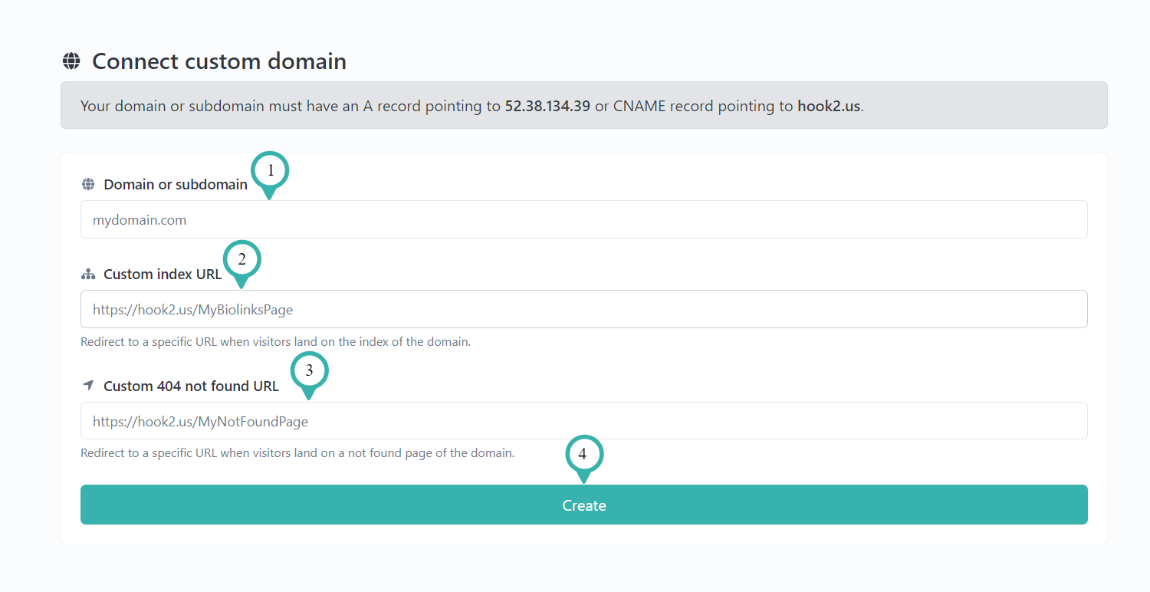
- Domain or subdomain: Enter your domain or subdomain here. Note that you need either an A record pointing to 52.38.134.39 or a CNAME record pointing to hook2.us.
- Custom index URL: Enter the internal short URL the domain should load by default. For example: https:/hook2.us/MyBiolinksPage.
- (optional) Custom 404 not found URL: Enter a URL for a page that visitors should see if the requested page cannot be found.
- Click “Create” or “Update.” (which word appears will depend on if you’re creating a new domain or editing an existing one).
Related Articles
Splash Pages
Finding Your Splash Pages You can use splash pages to highlight your brand or create a call to action. You can also use them for disclaimers or to prepare a visitor for your content. You can place ads on a splash page to generate extra revenue. You ...Biolink Pages
Finding Your Biolink Pages Biolink pages are the heart of Hook2.us. This is where your link-in-bio links to. Visitors end up on your biolink page where you can give them information and other links, whatever you need. Biolink pages are fully ...